A loan processor handles 20+ files at once. One missed condition delays a closing. I designed the tool that makes sure nothing slips.
Loan processors were tracking client conditions in spreadsheets and email threads. A file with 20 outstanding documents, split across co-borrowers, coordinated through a loan officer — all managed by copy-paste and memory. Delays were inevitable. So was the stress.
Loan processors sit between borrowers and loan officers. Their job is to collect every required document — passport, salary slips, tax returns, bank statements — before a file can move to underwriting. One missing condition holds up the entire closing.
They typically manage 15–30 active clients at the same time, each at a different stage, each with a different set of required documents. Some files have co-borrowers, some have multiple officers assigned, and deadlines vary across all of them.
Conditionly was built specifically for this role — a web app where processors manage conditions, coordinate with loan officers, and track completion across their entire pipeline from one workspace.
The design challenge wasn't "make a checklist app." It was: how do you give someone who's managing 25 parallel processes the clarity to act without adding more to remember?
Processors opened spreadsheets per client. There was no way to see at a glance which files were critical, which were close to closing, and which hadn't moved in weeks.
Sending a document reminder meant opening each client's email thread individually. For a processor managing 25 clients, that's 25 separate actions — every day.
Conditions weren't tracked by state. A processor had to read through an entire list to find what was still outstanding — there was no quick filter, no completion signal.
Who is the loan officer on this file? Are there co-borrowers? That information lived in emails or memory — not in the same place as the conditions being tracked.
Three hard limits shaped v1 scope before a wireframe was drawn:
No changes to Encompass LOS. The tool had to layer on top of the existing loan management system — not replace any part of it. Any workflow that required modifying the LOS was out of scope.
Processors were trained on email. This wasn't a naive user base — they were fast and fluent in their current workflow. The new tool had to be measurably faster than email, not just different. "Better" wasn't enough of a reason to switch.
No batch API in v1. Bulk reminders had to route through the existing email send infrastructure. The design had to make bulk feel instant to the user, even if the underlying system was sequential.
Before touching a wireframe, I mapped the processor's actual day — not what a product spec described, but what the work looked like in practice. The core loop was: check which clients need attention → follow up → update status → repeat.
That told me the tool had to answer two questions immediately on load: Where do I need to be? and What do I do when I get there?
"Visibility first, action second" — that became the design principle that shaped every layout decision in the product.
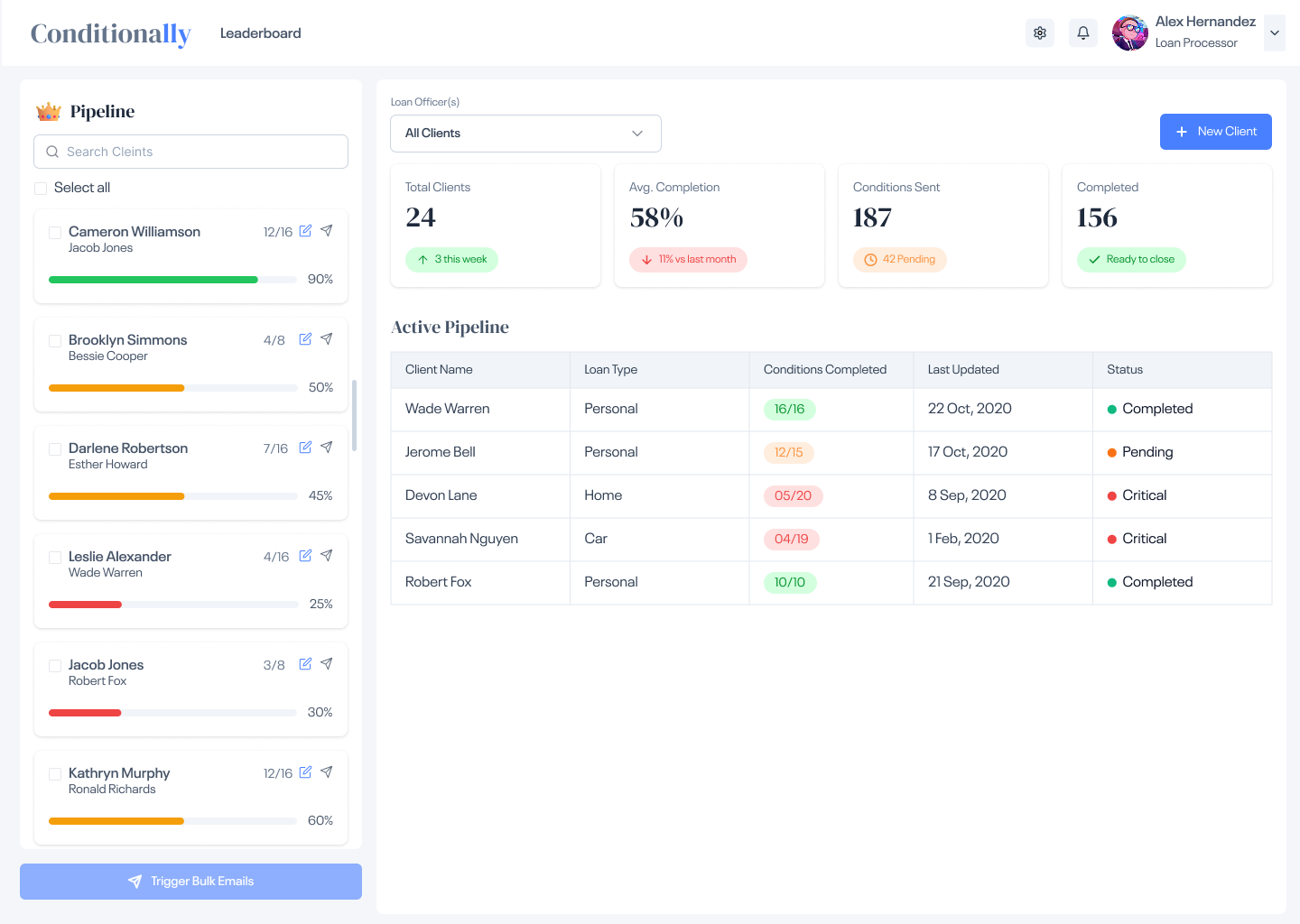
What I changed: Instead of navigating to a client from a table, the left panel shows every client with their loan officer, completion fraction (e.g. 12/16), and a colour-coded progress bar — always visible, even while editing another file.
Why: Processors don't work on one file at a time. They're constantly context-switching. A table-based list requires returning to a separate screen to see overall status. The sidebar collapses all of that — the processor always knows their full pipeline state.
Problem solved: "Which clients need my attention right now?" — answered before clicking anything. Red bars signal critical files; green signals files ready to close.
The pipeline view — 24 active clients visible at once, with completion % and KPI summary cards at the top
What I changed: The "Add New Client" screen captures everything in a single scrollable form — client and co-borrower details, loan officer assignment, initial email composition, and condition selection all in one place. One Save action commits everything.
Why: Processors add 3–5 new clients per day. A multi-step wizard means committing decisions in the wrong order, losing context between steps, and clicking through unnecessary screens. A single form front-loads the work so the processor moves on faster.
Problem solved: Intake that previously involved multiple tools (email for first contact, spreadsheet for conditions, separate system for officer assignment) is now one action.
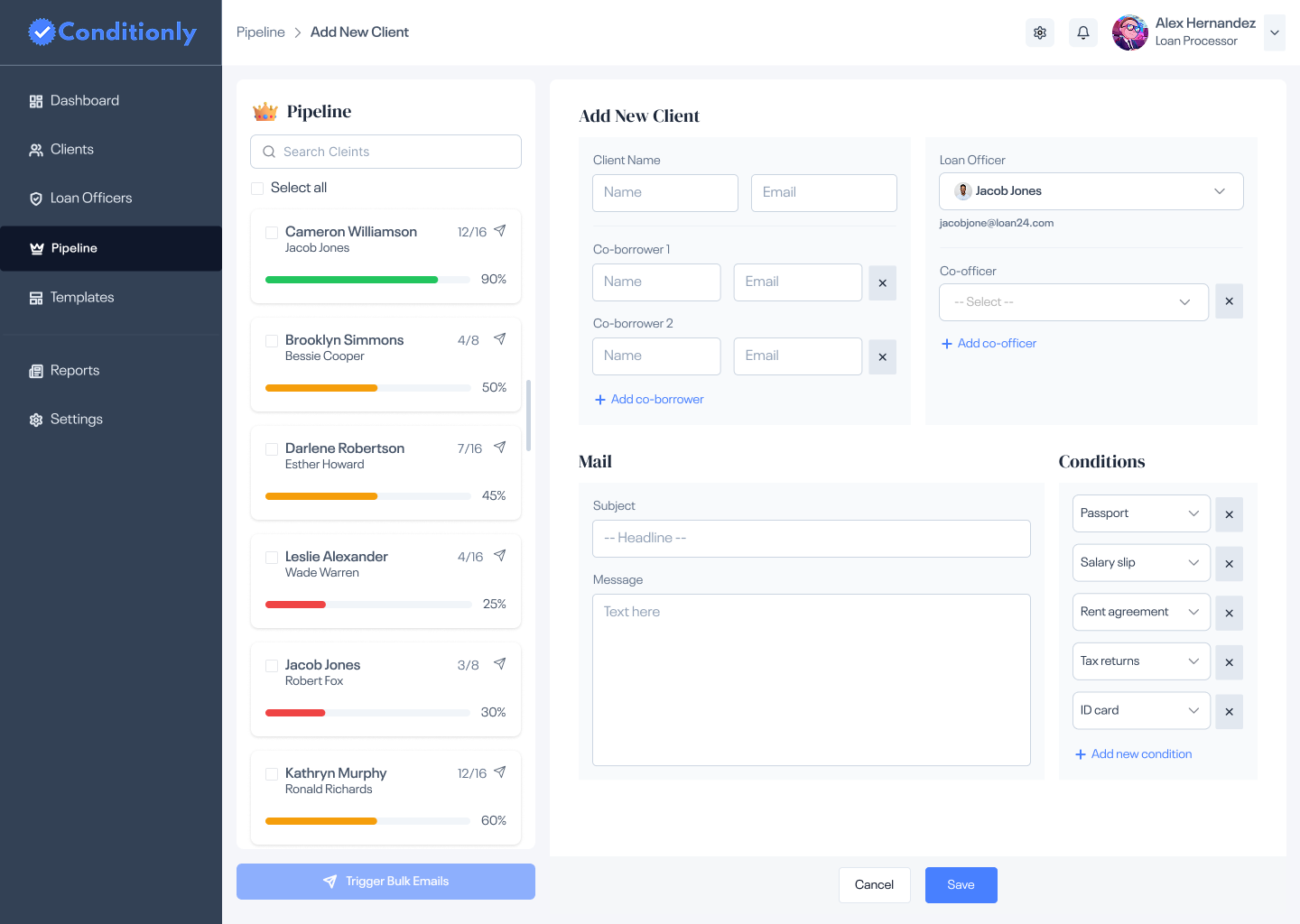
Client name, co-borrowers, loan officer, initial email, and conditions checklist — one form, one save
What I changed: When editing a client, conditions are split into Pending and Completed tabs. The live progress bar (e.g. 12/16 — 90%) updates as conditions are marked complete. "Save & Send Reminder" is available on the same screen.
Why: A processor checking a client's file only needs to see what's missing. Showing all conditions — done and pending — in one list means visual scanning every time. Tabbed states clear that cognitive task automatically.
Problem solved: "What does this client still need to send?" — one click, immediately answered. No filtering, no scrolling, no mental arithmetic.
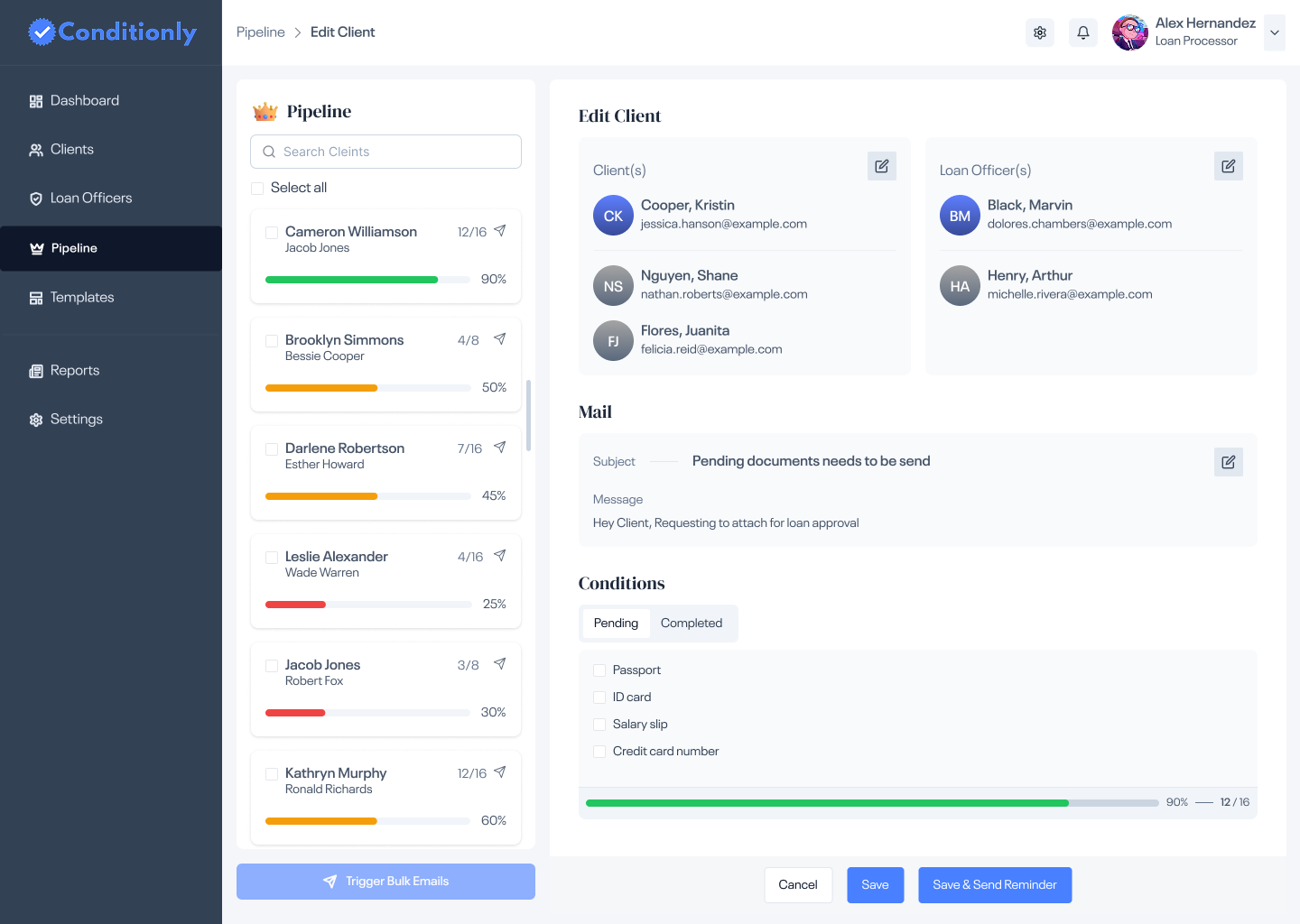
Pending/Completed tabs, live progress bar, and in-line "Save & Send Reminder" — the core daily interaction
What I changed: "Trigger Bulk Emails" is pinned to the bottom of the client sidebar — always in view, no menus to open. Processors select clients via checkboxes and trigger reminders to all of them in one action.
Why: Sending follow-ups is a daily, repeated task. Burying it behind a settings menu or making it per-client creates friction on a task processors do 10+ times a session. Pinning it makes the most frequent action the most accessible.
Problem solved: What used to be 25 individual emails in separate threads is now a 30-second batch operation. The time savings compound daily.
What I changed: Two emotionally distinct modals — a thumbs-up when a new client is added, a party popper when all conditions reach 100% — instead of a standard "saved" toast. Each confirms the specific client and the achievement.
Why: Loan processing is repetitive admin work. The tool needs to acknowledge progress or it feels like paperwork. Small celebratory moments break the routine and make the tool feel like it's working with you, not just recording your input.
Problem solved: The morale problem. A processor who gets a small win confirmation stays more engaged than one who stares at endless checklists.
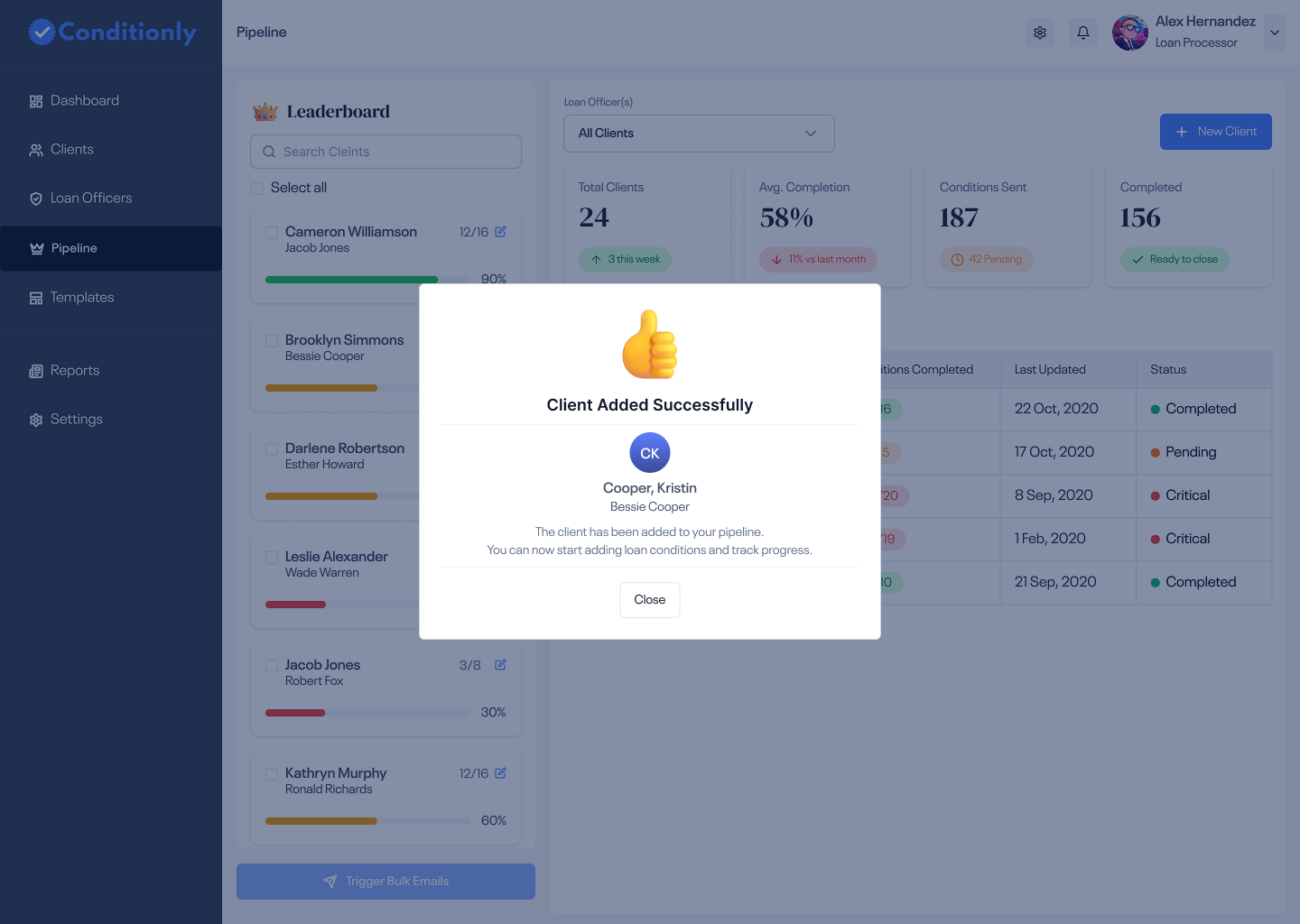
Thumbs-up acknowledgement with the client name and a prompt to start adding conditions immediately.
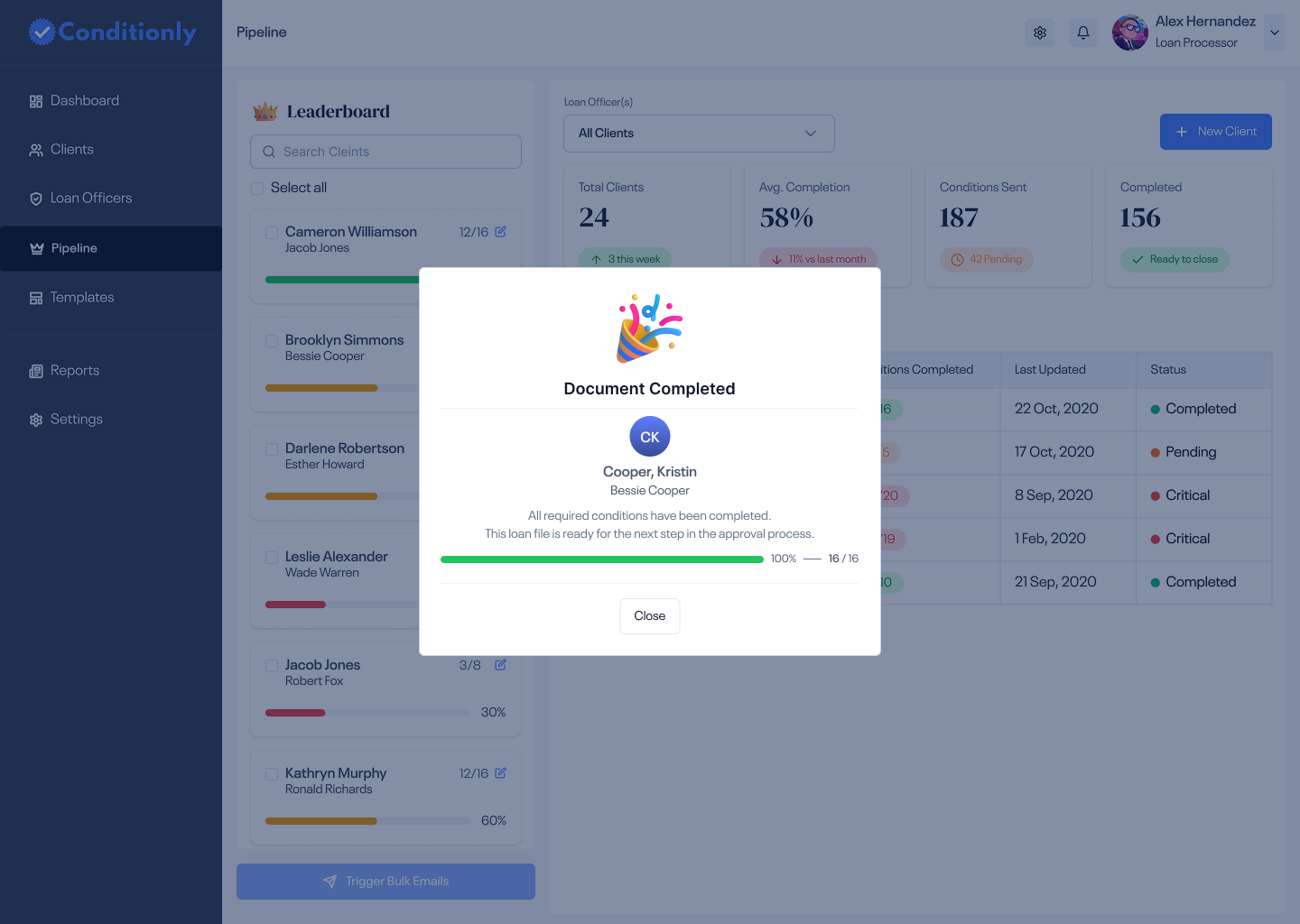
Party popper and 100% completion bar when all 16 of 16 conditions are fulfilled — the file is ready to move forward.
I kept the process lean — only the steps that actually changed the design are worth listing. Here's what shaped the final product.
Traced a processor's actual day: which tasks happen every session, what information is referenced most, and where work stalls waiting on others.
Tested three approaches — table-only, card grid, and split panel. The split panel won because processors need to navigate between clients without losing the pipeline overview.
Walked a processor through the conditions tab design. Their feedback: "Pending first is right — that's what I actually care about." Completed tab confirmed as secondary.
Colour-coded status (green/amber/red progress bars) applied consistently across sidebar, table, and condition views so the system reads the same everywhere.
Four KPI cards summarise the pipeline at a glance — Total Clients, Average Completion %, Conditions Sent, and Completed files. Below that, the active pipeline table shows each client's loan type, conditions completed fraction, last update date, and status badge.
The left leaderboard is always visible. At any moment, the processor knows exactly who's at 90% and who's gone cold at 25%.
A single screen captures the client's name and email, up to two co-borrowers, the assigned loan officer and co-officer, the initial outreach email (subject + body), and the document checklist — all before the first save.
The "Add co-borrower" and "Add co-officer" links expand the form inline. No separate screens, no back-and-forth.
The Edit Client view shows all borrowers with contact details, the assigned loan officers, and the current email thread — then the conditions panel below with Pending and Completed tabs.
The progress bar (90% — 12/16) updates in real time as conditions are checked off. "Save & Send Reminder" is right there — no navigating to a separate send screen.
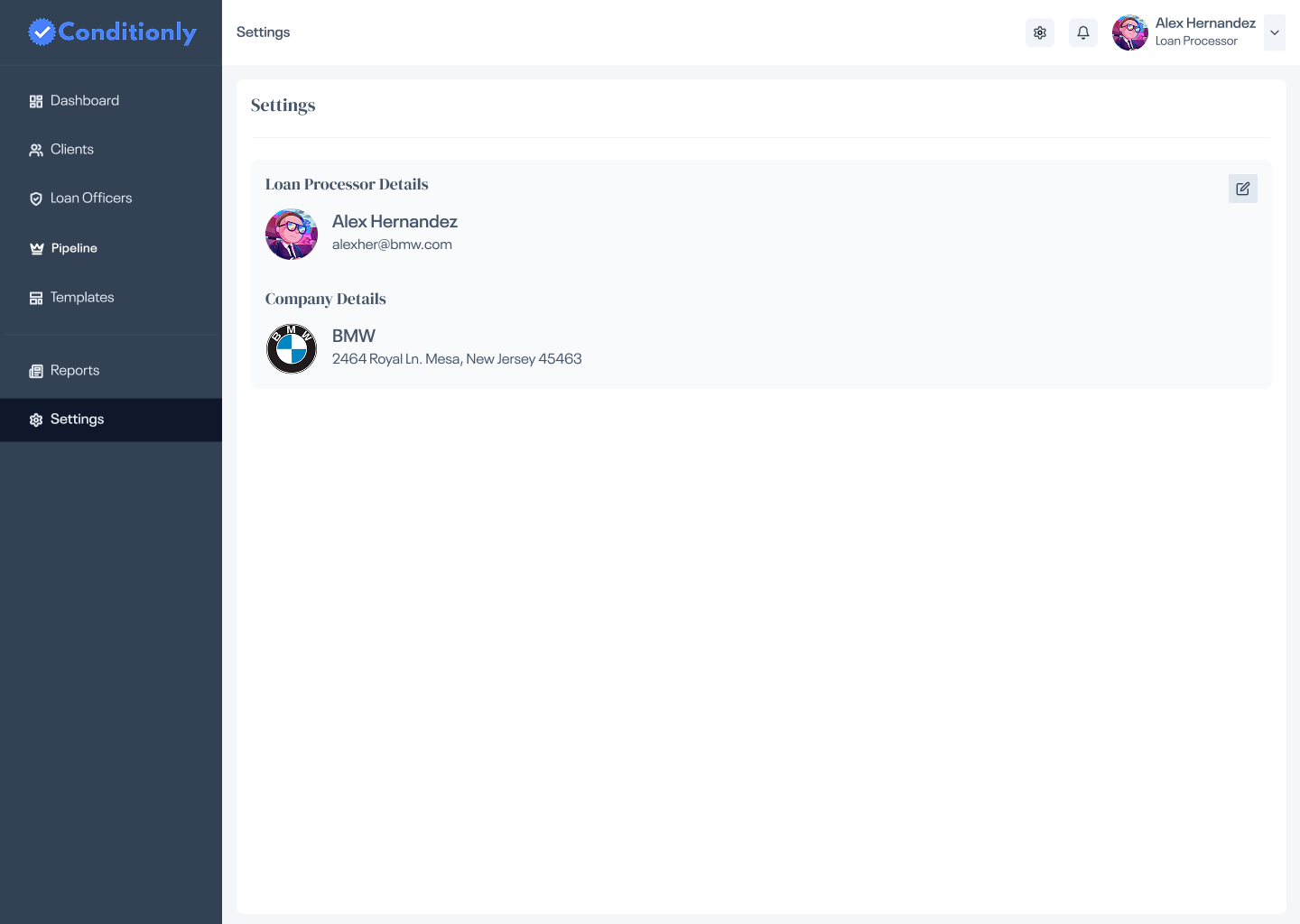
The settings screen keeps it minimal: Loan Processor Details and Company Details, displayed read-only with a single edit button. No tabs, no sub-sections — all the configuration a processor needs in one clean view.
Clicking edit opens inline form fields in place — no navigation to a separate edit page. Change what you need, save, done.
Bulk email triggers replaced per-client manual follow-ups. What took 30+ minutes now takes under 5 for a full pipeline sweep.
The leaderboard sidebar means no tool-switching. A processor orients their entire day from a single workspace.
Pending/Completed tabs with persistent status tracking ensure nothing disappears into a spreadsheet row.
Spreadsheet, email, contact list, shared drive, and note-taking — all consolidated into a single purpose-built workspace.
Before landing on the leaderboard sidebar, I prototyped a Kanban board — Trello-style columns: Outstanding → Documents Received → Verified. It looked clean in a single-client mock.
In a walkthrough with a processor managing 25 active clients, it fell apart immediately. Cards from different borrowers on the same file sat in different columns with no grouping. Conditions for Client A and Client B were visually equal — there was nothing in the Kanban structure that communicated which client was critical. Switching between files meant losing the column context entirely.
Why we cut it: Kanban works when tasks are atomic and independent. Loan conditions aren't — they're grouped by client, tied to deadlines, and only meaningful in the context of the full file. The list-with-grouped-conditions model won because it preserved that context at every level.
The sidebar leaderboard starts to feel crowded past 25–30 clients. There's no search filter by status (Critical, Pending, Completed) — at scale, a processor hunting for a specific client has to scroll. I'd address that in the next iteration with an inline filter bar at the top of the client list.
The navigation includes a Templates section and a Reports tab — both were scoped out of v1. Templates for reusable condition sets (e.g. "Standard Home Loan") would save significant setup time. Reports would unlock accountability data for team leads monitoring officer performance across the pipeline.
Productivity tools live or die on how fast the primary task can be completed. Every second of friction on the daily loop — checking status, sending reminders, updating conditions — is multiplied across 25 clients and repeated every day. Designing for speed isn't about minimalism; it's about removing decisions from repetitive paths.